Unlock a locked store record, then transfer ownership
Track installation and service requests
Wallet, rewards, and device insurance plans
Built for the store
One bill becomes a locker record. Stock alerts, complaints, and reports stay with the same store data on phone and desktop.
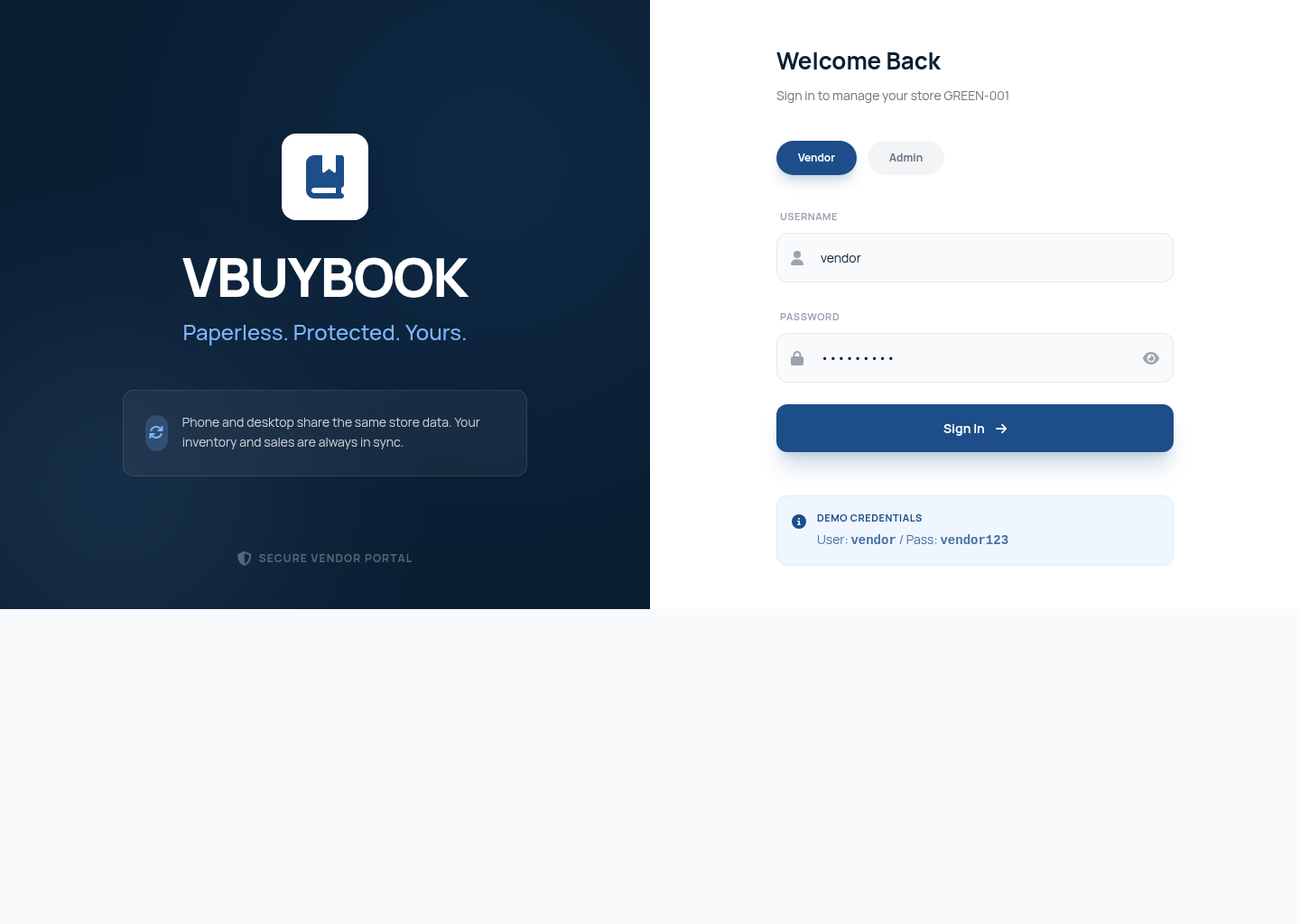
Sign in to the console
Vendor or admin access opens the same store. Phone and desktop stay in sync after sign-in.
Vendor or admin sign-in
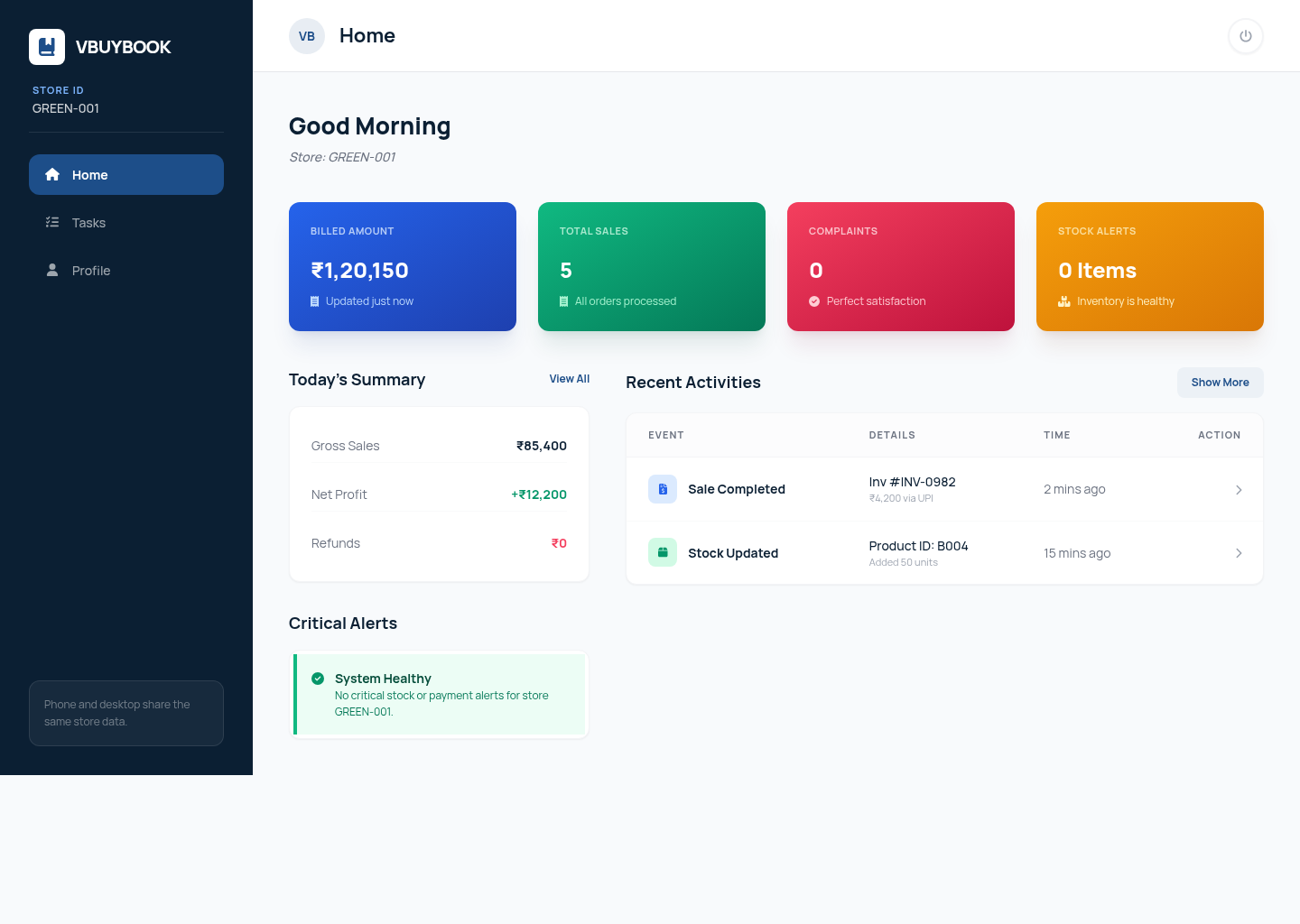
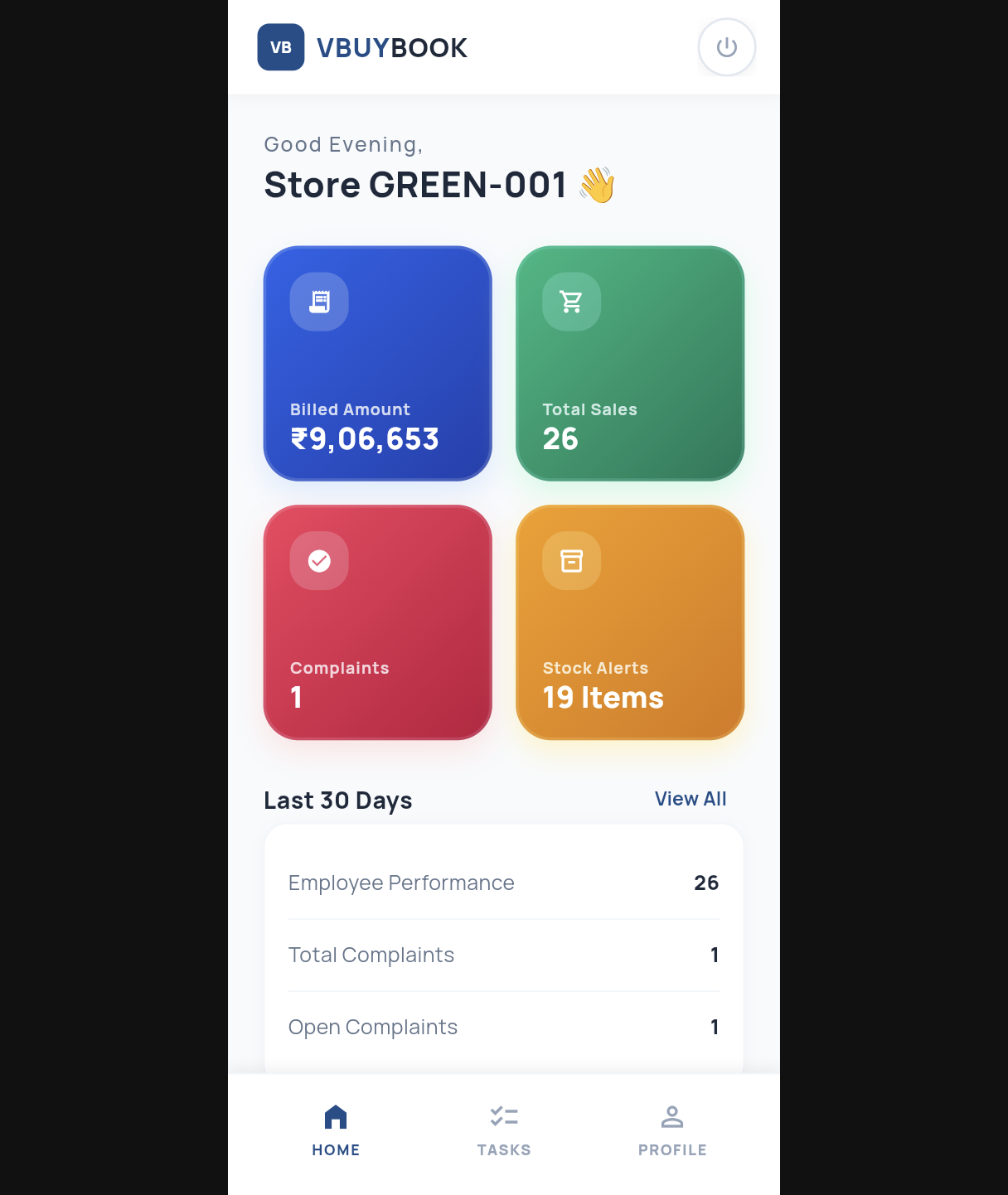
See the day at a glance
Billed amount, total sales, complaints, and stock alerts sit on Home. Last 30 days links open Employee Performance and Complaints.
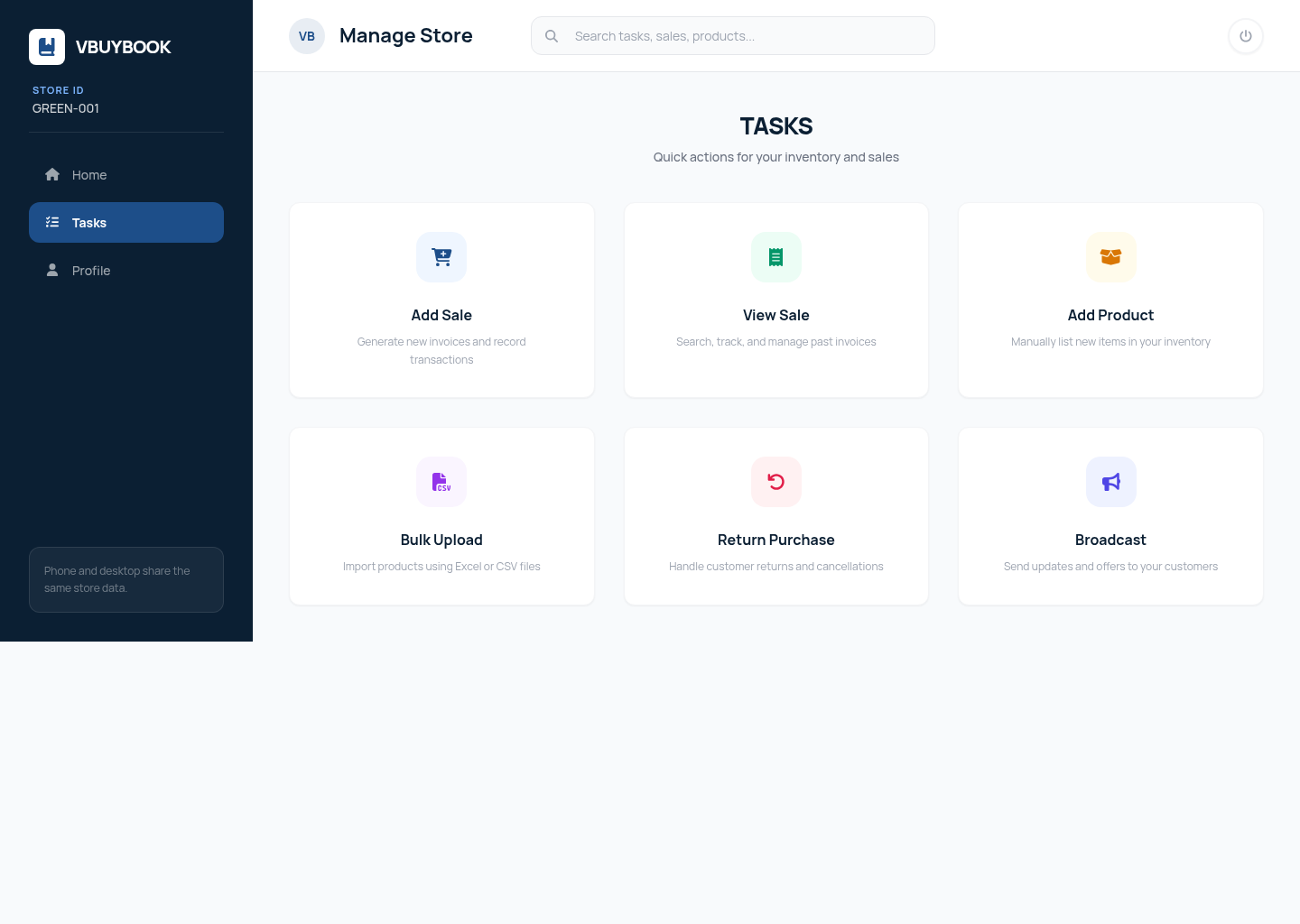
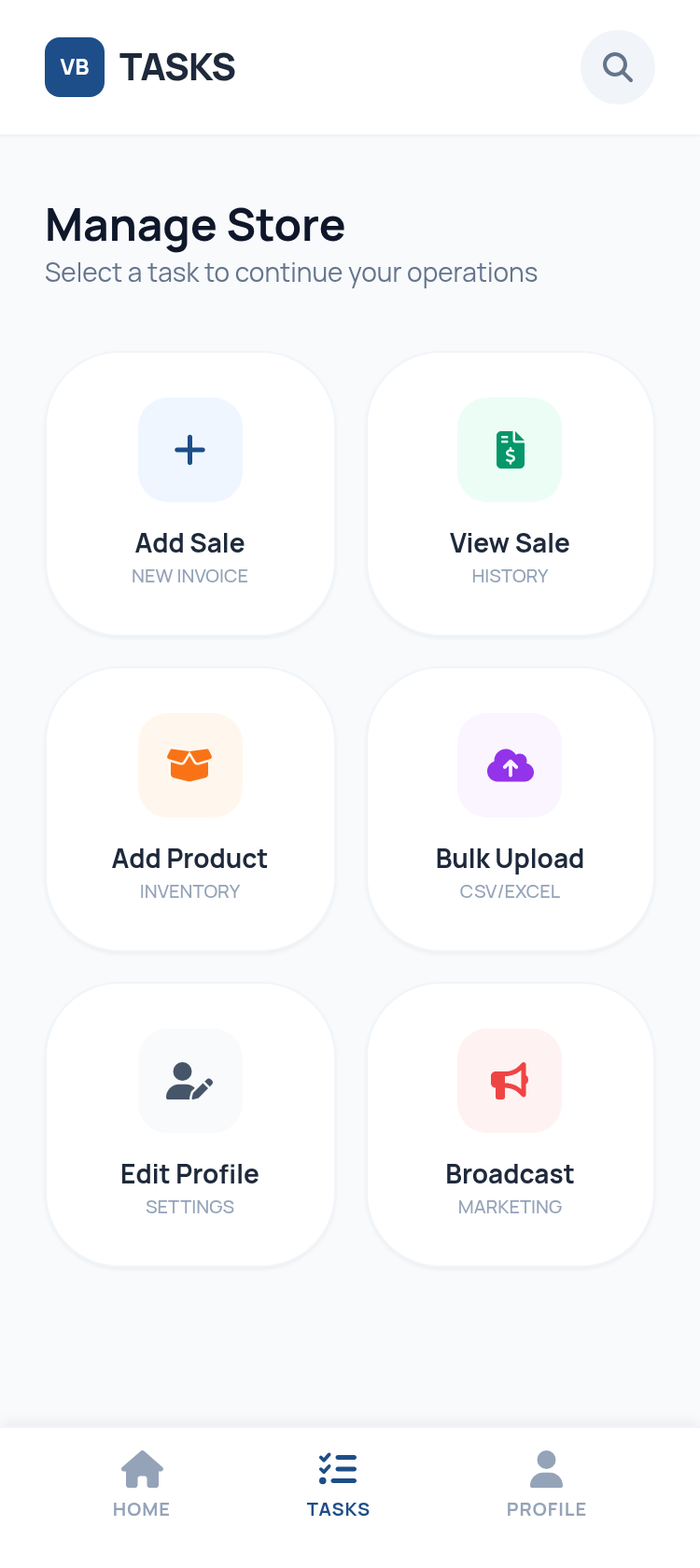
Tasks for the counter
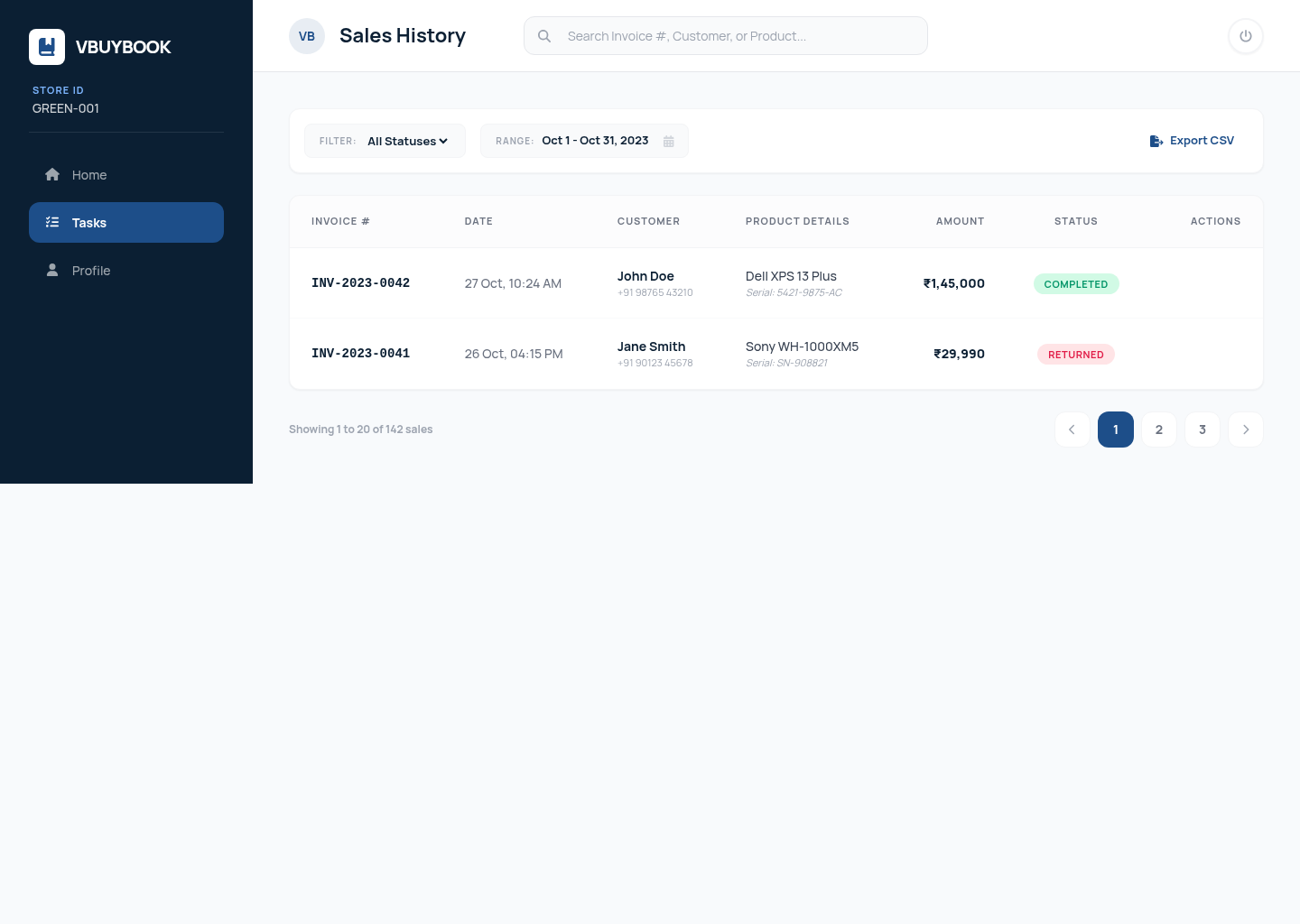
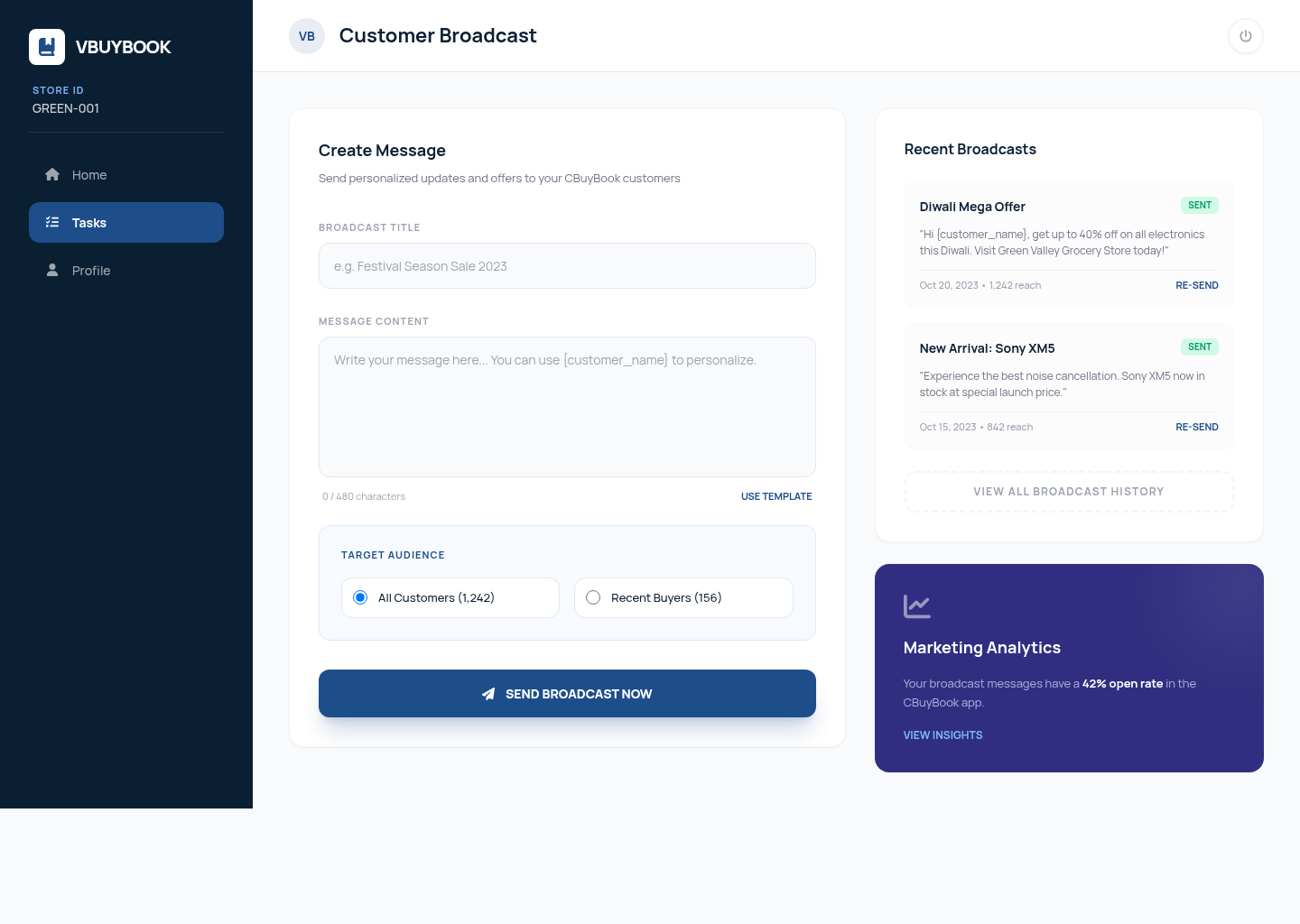
Add Sale, Add Product, View Sales, complaints, returns, broadcast, GST, and the balance sheet. Admin-only tiles stay gated.
Submit a sale to CBuyBook
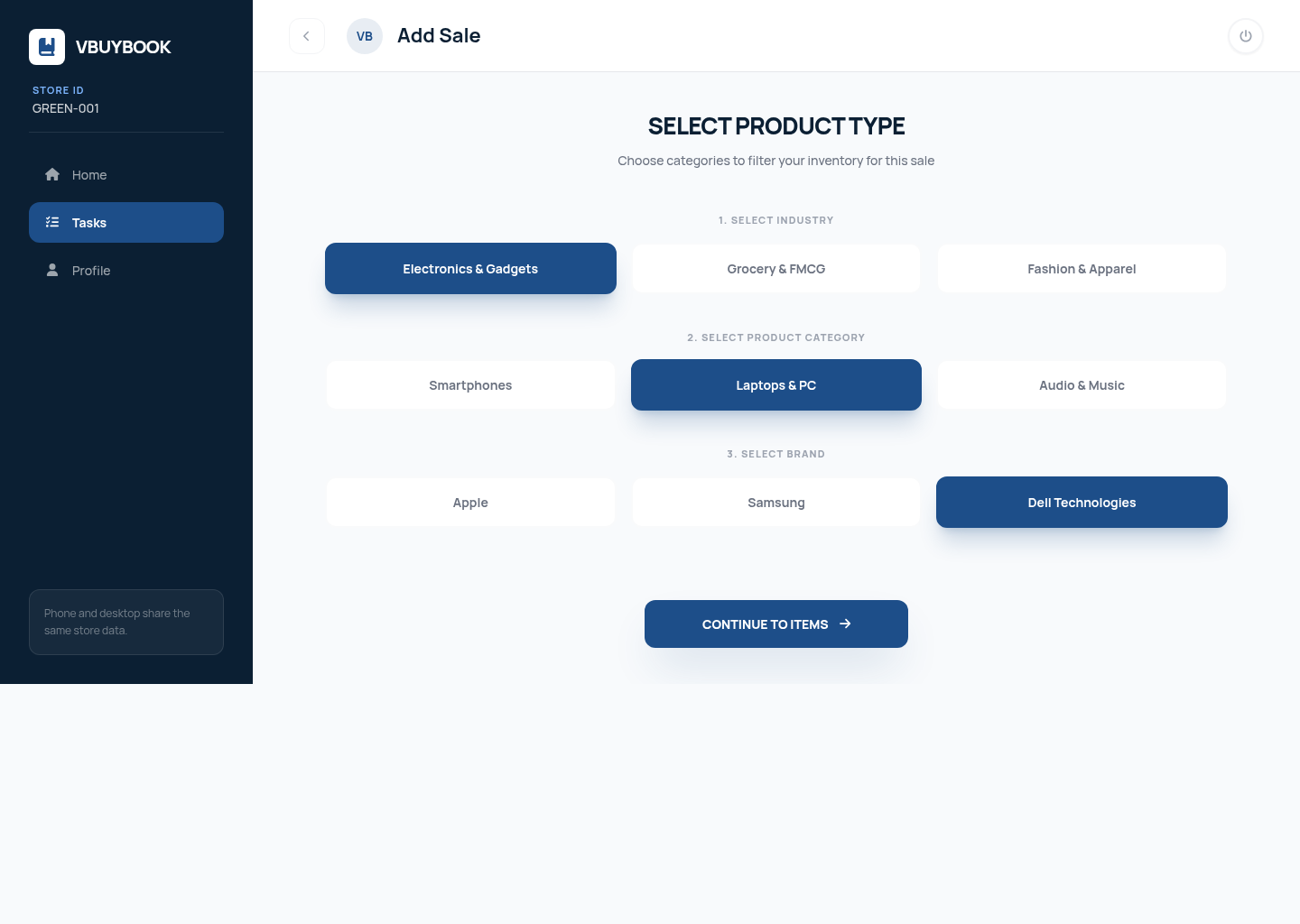
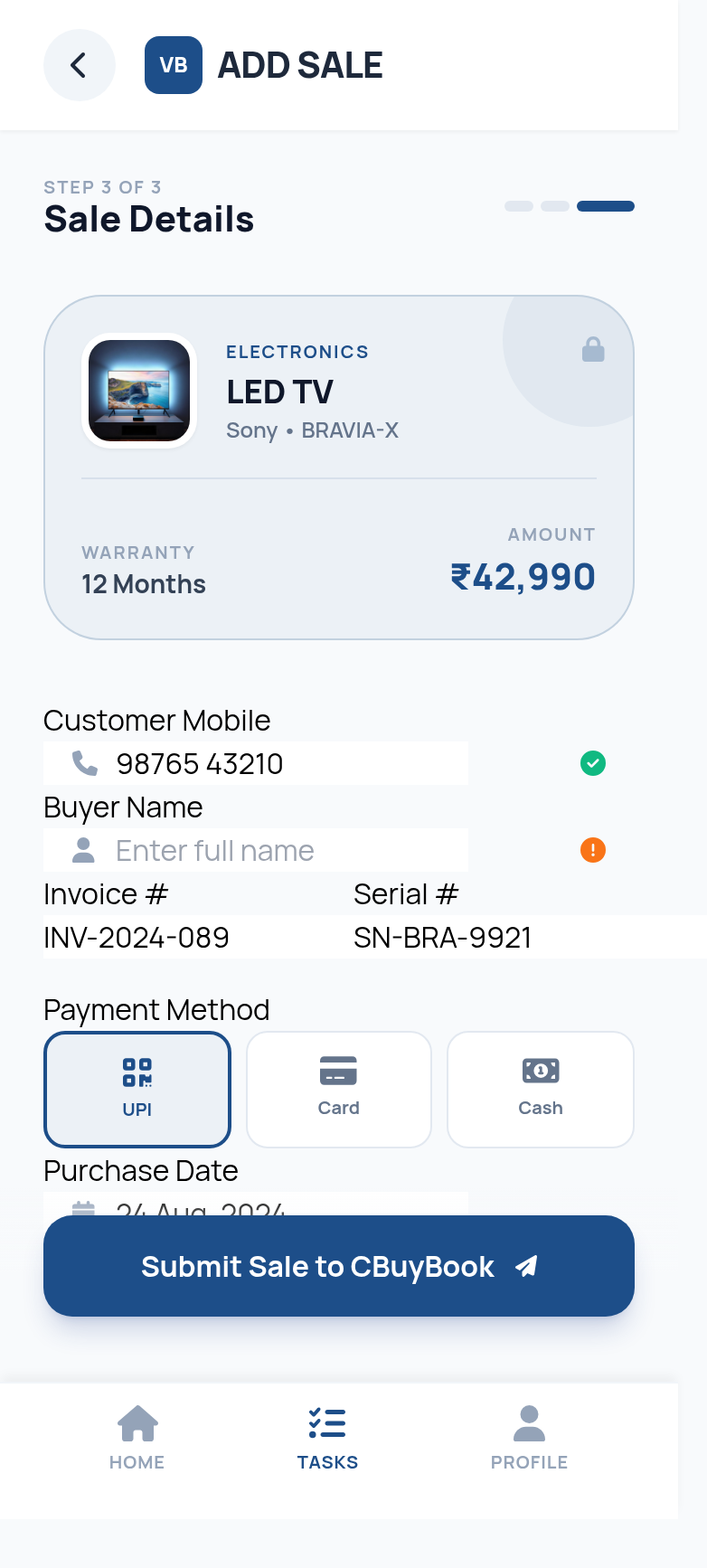
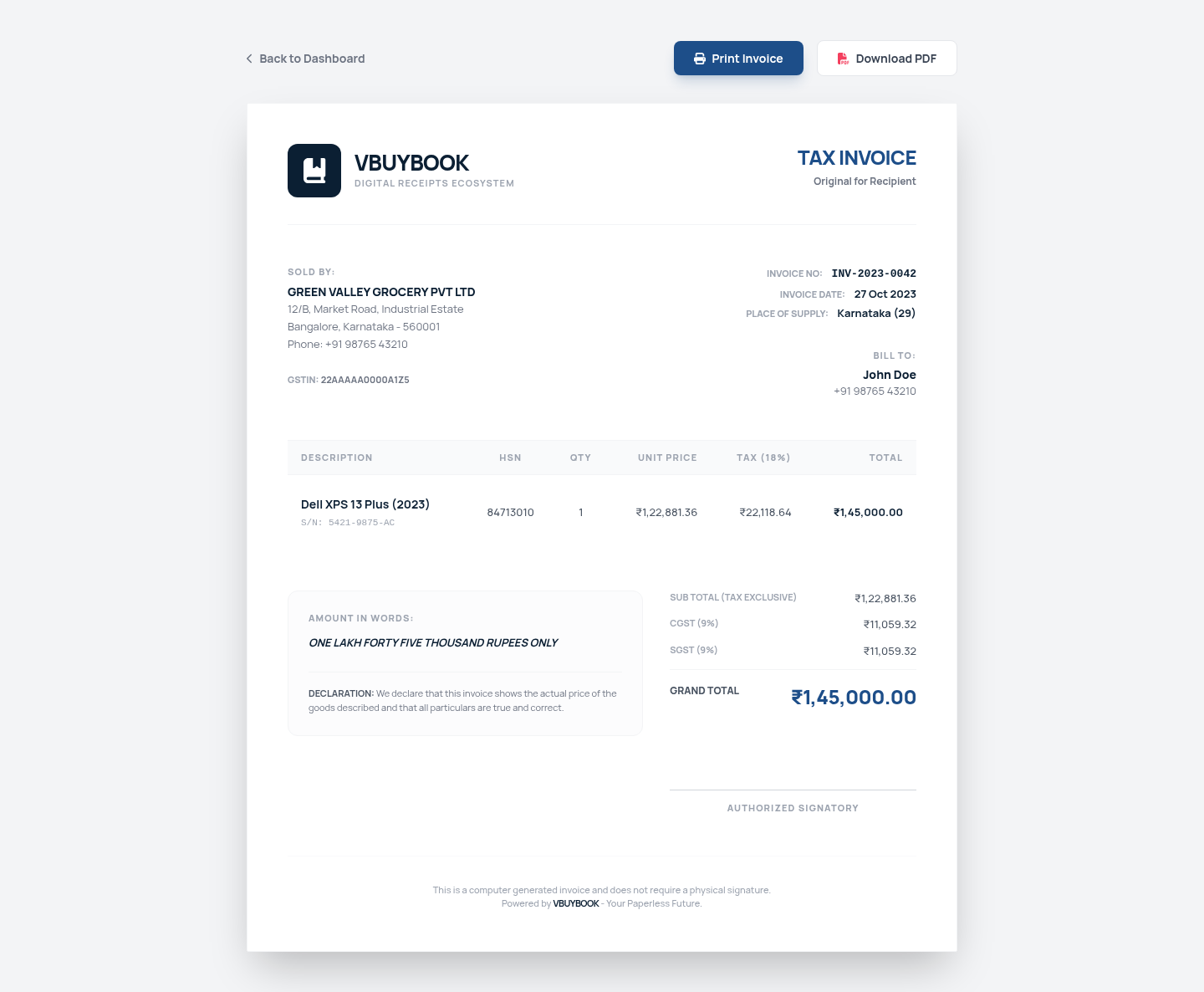
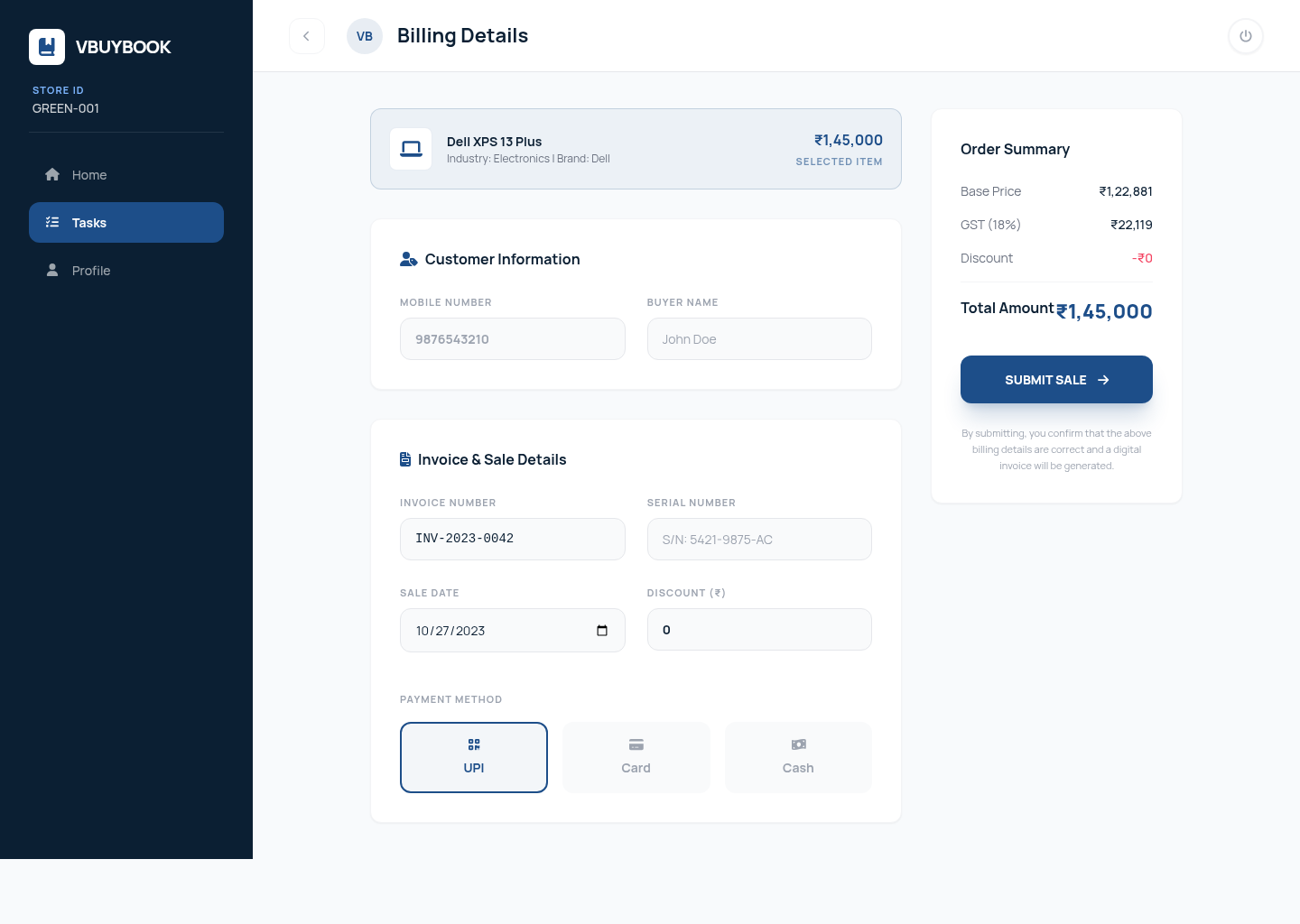
Pick industry, product, and brand. Enter the buyer’s mobile number, invoice, serial, payment, and date. Submit Sale places the purchase on that number.
Pick industry and product
Enter buyer mobile and billing details
Submit sale to CBuyBook
InvoiceView salesBroadcast
The buyer locker
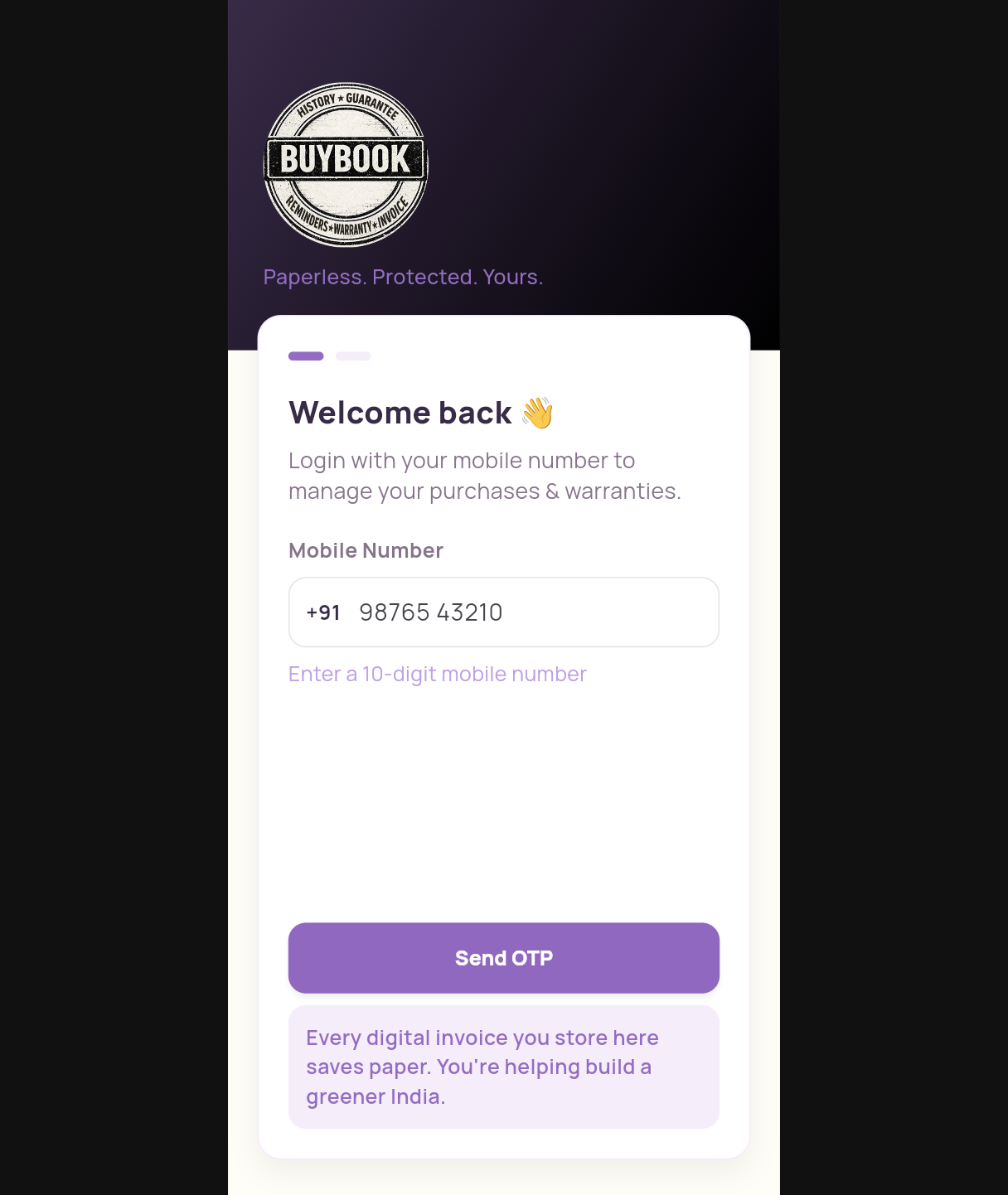
Customers open CBuyBook with their mobile number and OTP. Invoice, warranty, and reminders stay with the owner — and move if ownership is transferred.
OTP login
The locker is tied to the mobile number used at the counter.
Items and Expiring Soon
Home shows purchases and warranties that need attention.
Invoice and warranty
Each record keeps the digital invoice, assurance type, and sale date.
Track requests
Installation and service requests stay visible to the buyer.
Rewards
Copy a voucher code. TAP TO REDEEM asks Allow or Deny before leaving the app.
Transfer ownership
Unlock a locked store record, then move it to a new owner.
How a sale becomes a locker record
01
Bill in the console
The store adds the sale, completes payment, and authorizes with the store PIN.
02
Push to CBuyBook
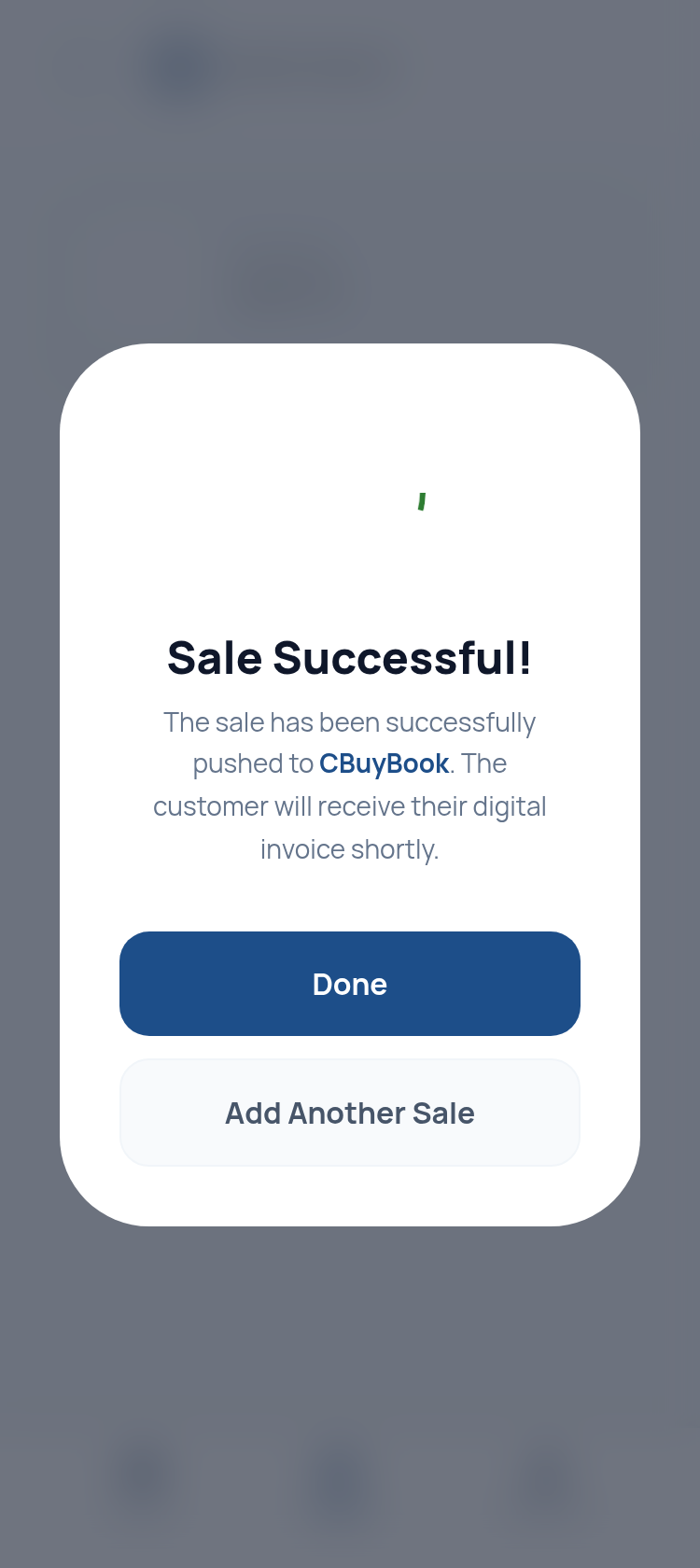
Submit Sale to CBuyBook places the purchase on the buyer’s mobile number.
03
Stay with the owner
Invoice, warranty, and reminders stay in the locker — and move if ownership is transferred.
Questions, answered
What is BuyBook?
A paperless purchase locker plus a store console. Stores bill in VBuyBook. Buyers keep invoice, warranty, and reminders in CBuyBook.
Who uses VBuyBook vs CBuyBook?
VBuyBook is the vendor console for stores. CBuyBook is the buyer locker on the customer’s mobile number.
How does a sale reach the customer?
The store completes billing and chooses Submit Sale to CBuyBook. The purchase is placed on the buyer’s mobile number.
Can staff use phone and desktop?
Yes. The phone app and the desktop website share the same store data after vendor or admin sign-in.
How do customers sign in?
Customers open CBuyBook with their mobile number and a one-time OTP. There is no store password on the locker.
What is in the locker?
Digital invoices, warranty or guarantee cover, Expiring Soon reminders, installation and service requests, wallet, rewards, and device insurance plans.
Can ownership move?
Yes. After a locked store record is unlocked, the owner can transfer it. Invoice and warranty move with the item.
How do rewards work?
Rewards live on the locker. Copy the voucher code. TAP TO REDEEM asks Allow or Deny before opening the partner site.
How do complaints work?
The store works Open and In progress complaints in the console. Buyers track installation and service requests from the locker.
Where is Login to Console?
The navy Login to Console button in the header, hero, products, and footer opens the vendor desktop sign-in.
Secure vendor portal
Open the store console
Sign in as vendor or admin. Inventory and sales stay in sync across the phone app and the desktop website.